
Appearance
Simulation modeling with AI
Talk to your simulation model. Describe your process, and build the model together with Quisim's Assistant, step by step. When the process changes, tell it, and your simulation stays up to date. And when you need help, ask the Explainer.
From a question to a simulation
Until now, a simulation started with a modelling project: the question had to wait for the one person who knows the simulation tool. With Quisim, the person who has the question can ask it directly.
Build. Describe the process, and get a first model the same day. With the Assistant you build it up step by step: first arrivals and servers, then breaks, priorities and routing. For complex models, a connected AI such as Claude takes on larger parts at once.
- Patients arrive every 12 minutes on average. Two doctors, each needs about 20 minutes per patient. Show the waiting time.
Plan. Try ideas on the model before trying them on the process. With Claude, ChatGPT or another AI connected, the AI runs each variant and compares the results for you.
- What if we open a third counter?
- Move the lunch break to 1 pm. Does the afternoon queue get longer?
Optimize. Ask a connected AI for the best value, and the simulation searches for it, run by run.
- Find the number of pallets per truck that minimises the cost per day.
Keep current. Processes change: a new shift plan, another machine, different demand. Tell the model, and it changes with them: a digital twin of your process that stays current, so the next plan starts from how the process works today.
- The night shift now has two nurses.
- Orders arrive 20 % faster on Mondays.
For process owners this means the model stays yours. You do not wait for a specialist to try an idea or to bring the model up to date, and the model does not fall out of use after a few months.
For consultants this makes a model a better deliverable. Your client explores and maintains the model you built, so it stays in use after the project. Day-to-day changes are no longer your bottleneck, and you are called for what needs your expertise: the new questions, the larger redesigns, and the next study built on a model that is still current.
Why you can trust the result
- You can show it to your team. The model is a set of blocks on a canvas, with entities you can watch moving through it, and a few lines of code that read like the sketch on paper. You see what the AI built, you can discuss it with your colleagues, and you can change it yourself. Generated Python code may run too, but only a programmer can check it.
- You see every change. Each edit is shown as the model code it adds, deletes or replaces, and appears on the canvas.
- The numbers come from the simulation. The AI does not guess a waiting time; the model runs in Quisim and the result comes with confidence intervals from replications.
- Optimized, not guessed. Ask a connected AI such as Claude for the best value of a parameter, and it does not estimate it: it adds Quisim's built-in optimization block, which searches for the optimum numerically, run by run, with replications and common random numbers. An Explorer block runs whole series of experiments the same way.
Three ways to work with AI
The Assistant builds and changes the model with you, one plain-language request at a time. The Explainer answers questions about the model and its results. The connector lets the AI you already use, such as Claude, ChatGPT, Gemini or VS Code, work in your open Quisim.
Assistant: build the model together
Quisim is the first discrete-event simulator with an AI that builds the model with you, right inside the program. Open the Assistant tab, write what you want in plain words, and the model appears: blocks, connections, random distributions, charts and statistics, ready to run.
Please create an M/M/2 model, using mean arrival duration 100 and processing duration 150. Plot and calculate the mean queue length.
One sentence, and the arrivals, the queue, the two servers, a chart of the queue length and its time-average statistic are on the canvas. Then keep going, one request at a time:
- Set the utilisation to 0.9. The Assistant works out the service time that gives 90 % utilisation with two servers, shows the calculation, and replaces the old value.
- Add a second queue for priority customers.
- Close the shop for lunch between 12 and 1.
The Assistant is a modelling partner: it knows the model you have open, and each request is one step you can check before the next. You see exactly what changed, and you run the result yourself. For complex models, with many blocks, routing or custom code, a connected AI such as Claude has the larger context they need.
The Assistant comes with licences that include the AI builder.
Explainer: ask about your model
The Explainer tab is an AI tutor. It reads the current model, the blocks you have selected, any error messages and the results of the last finished run, and answers in plain language. It only explains; it never changes the model.
- What is this model about?
- Why does the queue grow?
- What is this error about?
- What could we do to shorten the wait?
Suggested questions fit what you are doing: explain the selected blocks, explain the current error, interpret the results. It helps a colleague who inherits a model, and students who want to understand a model rather than have it built for them.
The Explainer comes with the full version. The UI guide describes it in detail.
Connect your own AI (MCP)
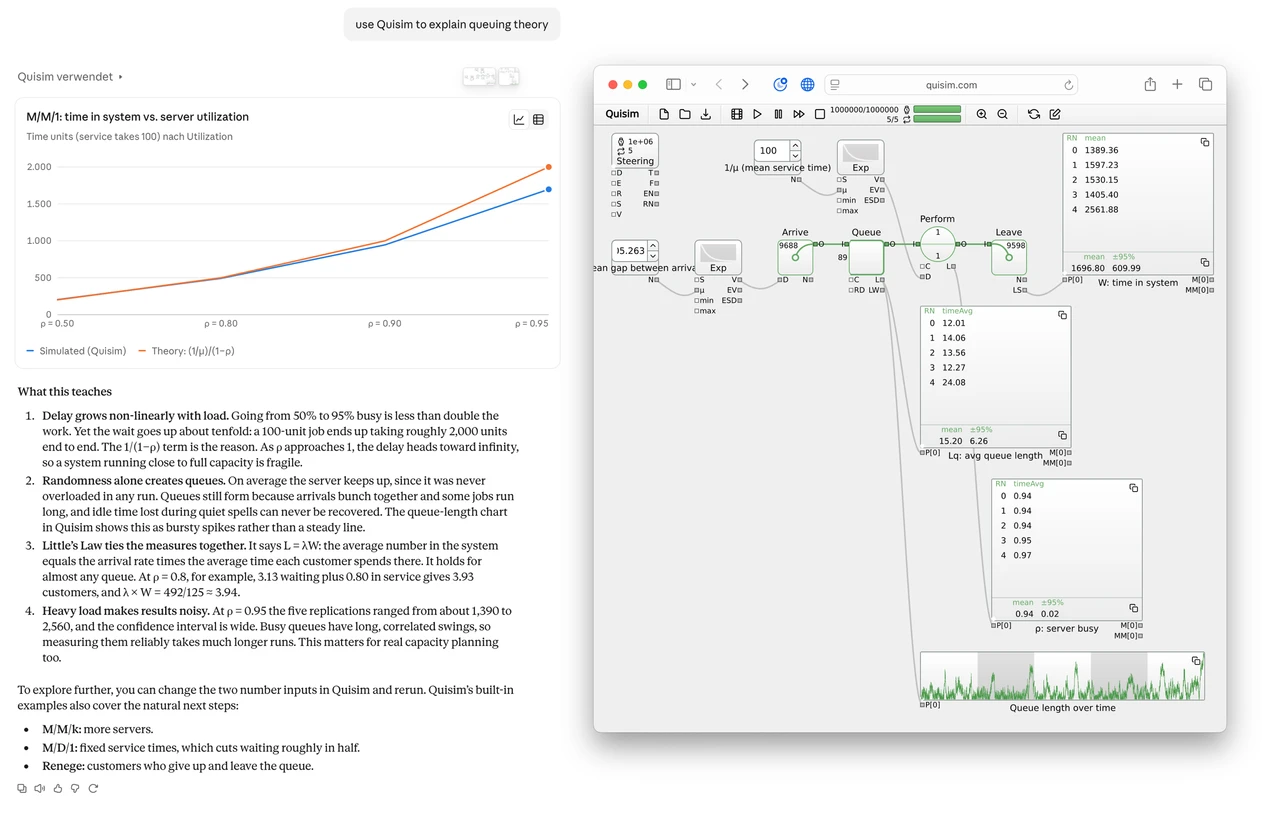
Quisim is also a connector, or MCP server, for the AI you already use. The assistant then works in the Quisim you have open: it creates and changes models, runs simulations, reads values, tables and events, and looks at the model as an image. You see it all in your own browser tab.
That makes it the way to plan and optimize: the AI changes the model, runs each variant, compares the results and, for the best value of a parameter, adds Quisim's optimization block and lets the simulation search for it.
- Online: connect Claude, ChatGPT, Gemini or VS Code to
https://mcp.quisim.com/mcp. Quisim is listed in the Claude directory. - Desktop app: the Quisim desktop app runs its own connector on your computer (stdio). There it can also open and save model files, save images and render movies, into folders you allow.
Step-by-step setup for every assistant, the list of tools and what to do if something does not work: Use Quisim from your AI assistant.
Which one to use
| Explainer | Assistant | Your own AI (connector) | |
|---|---|---|---|
| Where | Tab in Quisim | Tab in Quisim | Claude, ChatGPT, Gemini, VS Code, Claude Code |
| Builds and changes models | no | step by step, with you | yes, also complex models |
| Explains models and results | yes | explains its edit | yes |
| Runs simulations, reads results | reads the last run | no, you run it | yes |
| Plans scenarios, optimizes | no | no | yes |
| Needs | Full version | AI builder | AI builder |
Your data
The Assistant and the Explainer send the model and its results to our AI server to answer. The connector passes requests between your assistant and your open Quisim tab and stores no model content and no conversation; what a tool returns goes to the assistant you connected, under its provider's terms. The privacy notice has the details.
Get the AI builder
The AI builder comes on top of the full version, for companies, consultants, individuals and whole courses. Write to us to add it to your licence, or see pricing.