
Appearance
Use Quisim from your AI assistant
New to Quisim?
Quisim is a discrete-event simulator with an intuitive, block-based approach: you build a model of a queue, a production line or a hospital from blocks, run it and interpret the statistical results.
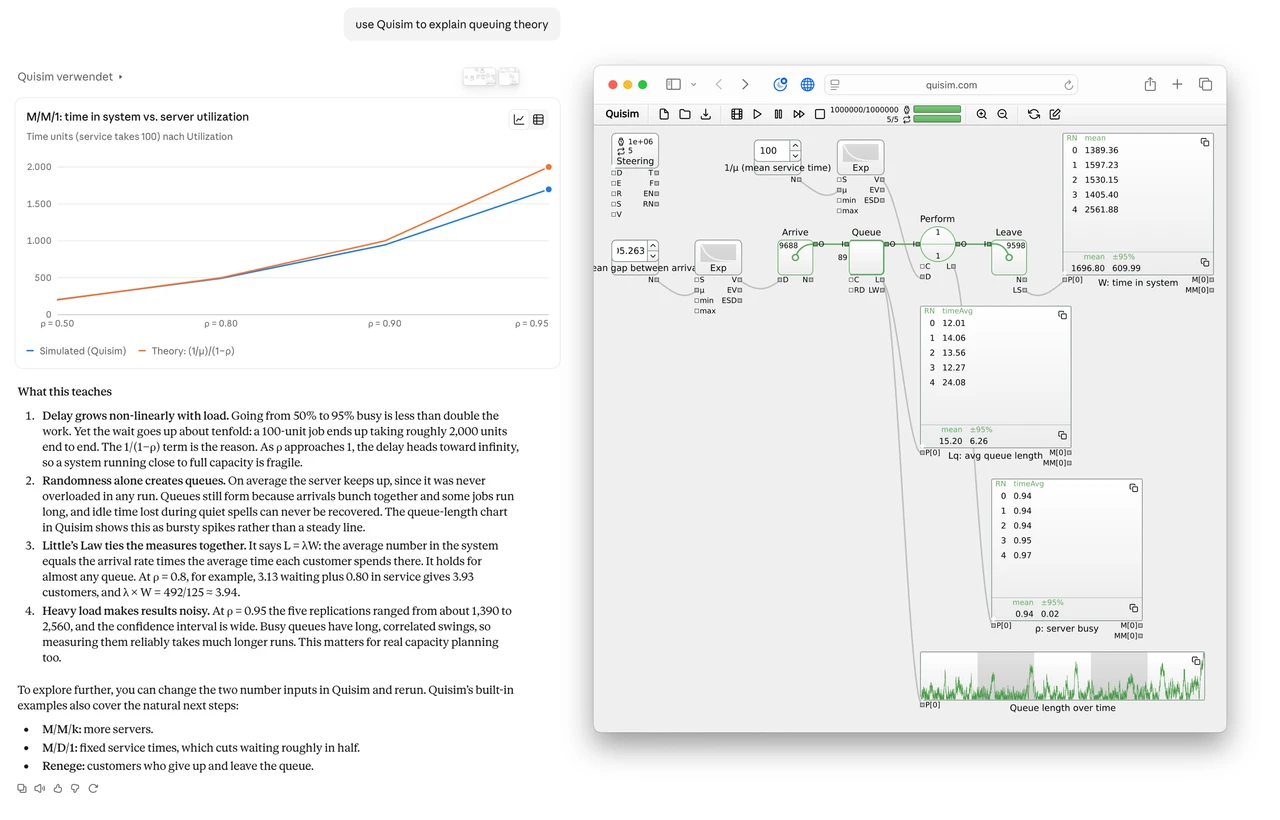
Quisim can be added to an AI assistant as a connector (an MCP server). The assistant then works in the Quisim you have open: it writes and edits the model, runs the simulation, reads results and can look at the model as an image, while you watch every change happen in your own browser tab.
What you need
- A Quisim license that includes the AI builder. It comes on top of the full version; ask us if your license does not have it yet.
- An assistant that can add a remote connector, such as Claude, Claude Code, ChatGPT, Gemini or VS Code.
- Quisim open in a browser tab, signed in with the same account. The assistant acts in that tab; with no tab open its tools only say to open one.
Connect
The connector address is the same everywhere:
https://mcp.quisim.com/mcpThe first time, the assistant opens the Quisim sign-in page. Sign in as you do for Quisim itself; the assistant receives a key for the Quisim tools only, not your password.
- Claude: open Quisim in the Claude directory and choose Connect. Or, on claude.ai or in the desktop app, Settings › Connectors › Add custom connector, paste the address, then Connect. Either way it is then available in the mobile apps too.
- Claude Code: if you added the connector on claude.ai and use Claude Code with that account, it is there already. Otherwise run
claude mcp add --transport http quisim https://mcp.quisim.com/mcp, then sign in from/mcp. - ChatGPT: in its settings, add a custom connector (app) with the address.
- Gemini: on gemini.google.com, Settings › Connected apps › Add a custom app, paste the address, then follow the sign-in. Google currently offers custom apps only in the US, and only on some accounts; if the option is missing, your account does not have it yet. Gemini CLI cannot connect.
- VS Code: run MCP: Add Server…, choose HTTP, and enter the address.
Then open Quisim and ask the assistant something like:
- Build a model of a coffee shop with two baristas and run it for a day. What is the average waiting time?
- Load the M/M/1 example and add a second server. Compare the queue lengths.
- Show me the model as an image.
What the assistant can do
| Tool | What it does | Changes your model |
|---|---|---|
| getCode | Reads the model code in the editor | no |
| loadCode, loadExample, newModel | Replaces the model in the editor (undoable) | yes |
| editCode | Changes part of the model code (one undoable step) | yes |
| runSim | Runs the simulation to the end | no |
| blockAttributeValue | Reads a value or a statistic of a block | no |
| getImage | Returns the model, or one block, as a PNG image | no |
| listBlocks, describeBlocks, searchApi | Looks up the block types and their properties | no |
| listExamples | Lists the built-in examples | no |
| showEntities, showMonitor | Turns the entity animation or the monitor views on or off | no |
| listWindows, useWindow | Lists your open Quisim tabs, and picks the one to work in | no |
Every change to the model can be undone in Quisim with Undo. In the browser the assistant cannot read or write files on your computer.
Several tabs. If you have more than one Quisim tab open, the assistant works in the one you used last. listWindows shows them numbered 1, 2, …, and you can tell it which one to use ("work in window 2").
The desktop app
The Quisim desktop app has its own connector, which runs on your computer instead of through quisim.com. It can also save models and images and render movies, into folders you allow. Add it to Claude Code with
claude mcp add quisim-desktop -- /Applications/Quisim.app/Contents/MacOS/Quisim --jsonrpc(adjust the path on Windows and Linux). With a Quisim window open, the assistant works in it; otherwise Quisim starts one.
Your data
- The connector passes requests between the assistant and your open Quisim tab. It stores no model content and no conversation. It records only when a tab or an assistant connected, for which account and which assistant, as part of our server logs.
- What a tool returns (your model code, results, images) goes to the assistant you connected, and is handled by its provider under the terms you agreed with them. Quisim does not control that.
- You can disconnect at any time in the assistant's connector settings. Signing out of Quisim also ends the tab's connection.
The privacy notice has the details.
If something does not work
- "No Quisim window is open for this account." Open Quisim in a browser and sign in with the account you connected the assistant with, then ask again.
- "… MCP tools come with the AI builder …" Your license does not include the AI builder. Write to us.
- The assistant asks before every change. That is the assistant's permission setting; tools that only read run without asking, tools that change the model ask unless you allow them.
- Sign-in fails or loops. Remove the connector in the assistant and add it again.
Questions or problems: hello@quisim.com.